The Imapsync Migration Tool can copy your email from a Gmail mailbox into your MyHost mailbox. Gmail needs a few extra steps that other providers don't: an app password instead of your normal password, and one extra option so your Gmail labels arrive as tidy folders. This article covers those steps. For everything else about the migration tool, read Migrating your email to MyHost.
Contents
- Before you start
- Turn on 2-Step Verification
- Create an app password
- Create the migration
- How your Gmail labels arrive
- How long it takes
- After the migration
- If the migration doesn't work
Before you start
This works for personal Gmail addresses (ending in @gmail.com) and for work email hosted by Google (Google Workspace), as long as Google lets you create an app password.
- Google doesn't accept your normal Gmail password from other tools. You need an app password, and that needs 2-Step Verification turned on first. The steps are below.
- Some accounts can't create app passwords. Google doesn't offer them on work or school accounts where the administrator has turned them off, on accounts that sign in only with security keys, or on accounts with Advanced Protection. If you can't find the option, ask your Google Workspace administrator, or get in touch with us about our Migration Service.
- You don't need to turn on IMAP. It is always on for personal Gmail accounts.
- Sign in to Gmail in your browser first. If Google shows a security check ("Was this you?"), approve it. Otherwise Google can block the migration's first sign-in.
- Only email is copied. Messages and labels come across. Contacts, calendars, filters, signatures and chats stay in Google.
The rest of the checklist in Migrating your email to MyHost still applies: create the new mailbox first, find your MyHost mail server name, and make sure the new mailbox is big enough.
Turn on 2-Step Verification
If 2-Step Verification is already on, skip to the next section.
- Go to myaccount.google.com/security and sign in.
- Under How you sign in to Google, click 2-Step Verification and follow Google's steps. You'll need your phone.
- When it's done, the 2-Step Verification row shows On.

Google's own guide: Turn on 2-Step Verification.
Create an app password
An app password is a 16-letter code that lets the migration tool sign in to your Gmail mailbox instead of your normal password.
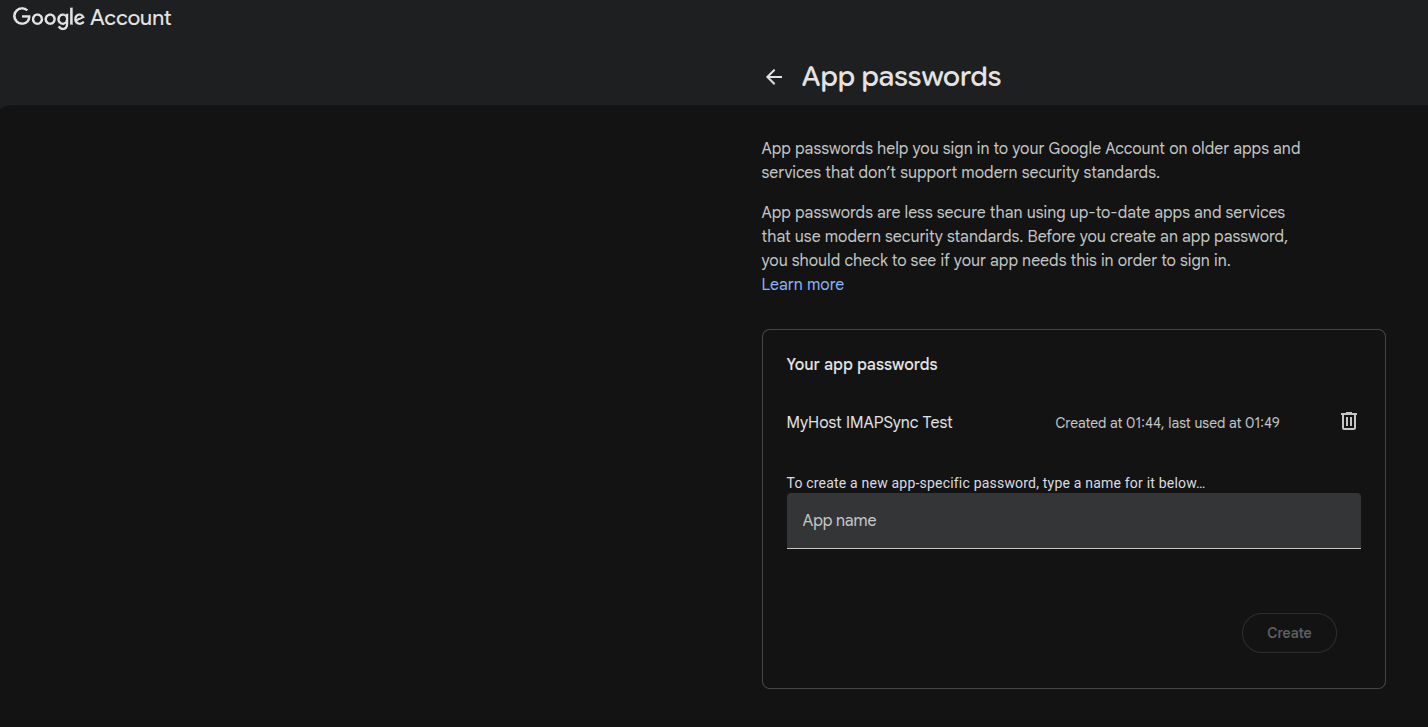
- Go to myaccount.google.com/apppasswords and sign in. Google doesn't always show a link to this page in its settings, so use the address directly.
- Under App name, type a name you'll recognise, for example
MyHost migration, then click Create.
- Google shows your app password in four groups of four letters, for example
abcd efgh ijkl mnop. Copy it and keep it somewhere safe until the migration is set up. Google only shows it once. - Click Done.
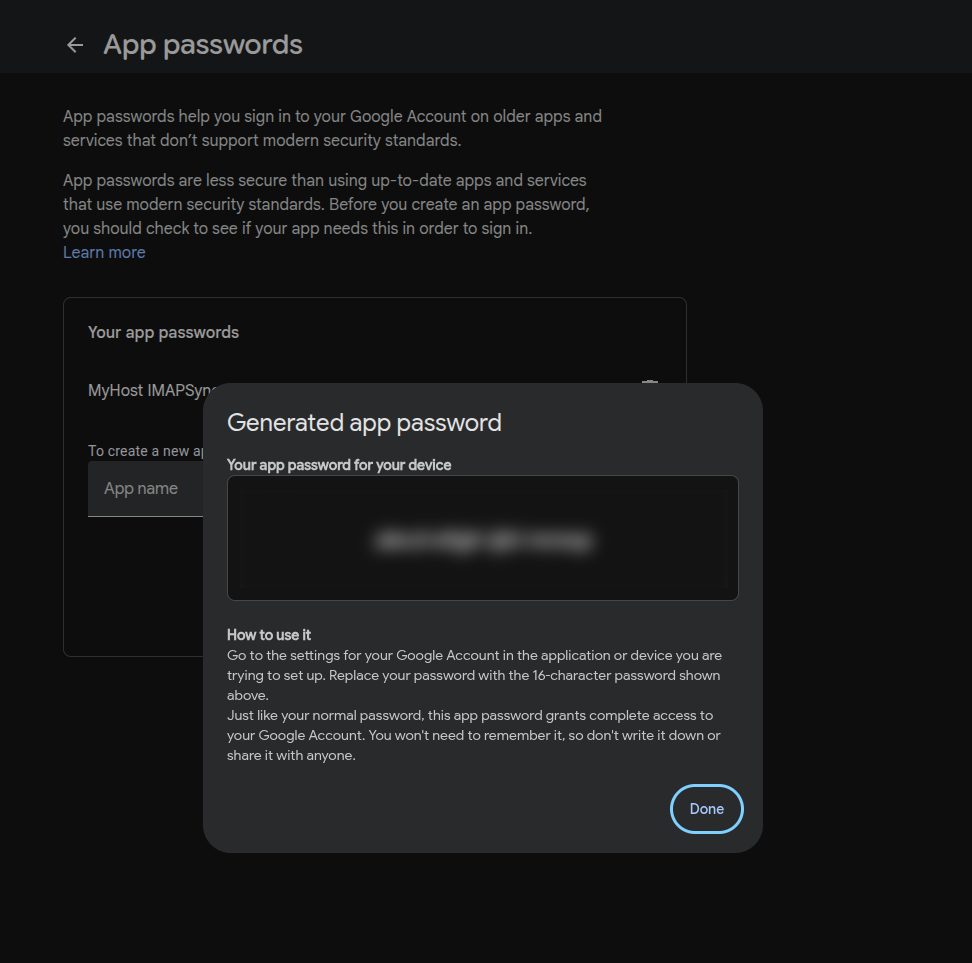
Type the app password without the spaces, for example abcdefghijklmnop. The migration tool uses the password exactly as you type it.
Google's own guide: Sign in with app passwords.
Create the migration
Open the migration tool and click to start a new migration, as described in Migrating your email to MyHost. Fill in the form like this:
| Field | What to enter |
|---|---|
| Source Account > Mail Server | imap.gmail.com |
| Source Account > Email Address | Your full Gmail address, for example user_old@gmail.com |
| Source Account > Password | The 16-letter app password, without spaces. Not your normal Gmail password. |
| Destination Account | Your MyHost mail server, new mailbox and its password, as usual. For example hostnew.domain.tld and user_new@domain.com. |
| Sync Mode | Sync All |
| Advanced Options > Extra Flags | --gmail1 |
Always add --gmail1. Gmail stores one copy of each message and shows it under every label it has, including All Mail and Important. Without --gmail1, the migration copies the same message once for every label, so most of your mail arrives two or three times, and your Sent mail lands in a folder called [Gmail]/Sent Mail instead of your MyHost Sent folder. With --gmail1, each message is copied once and Gmail's folders are matched to your MyHost ones.
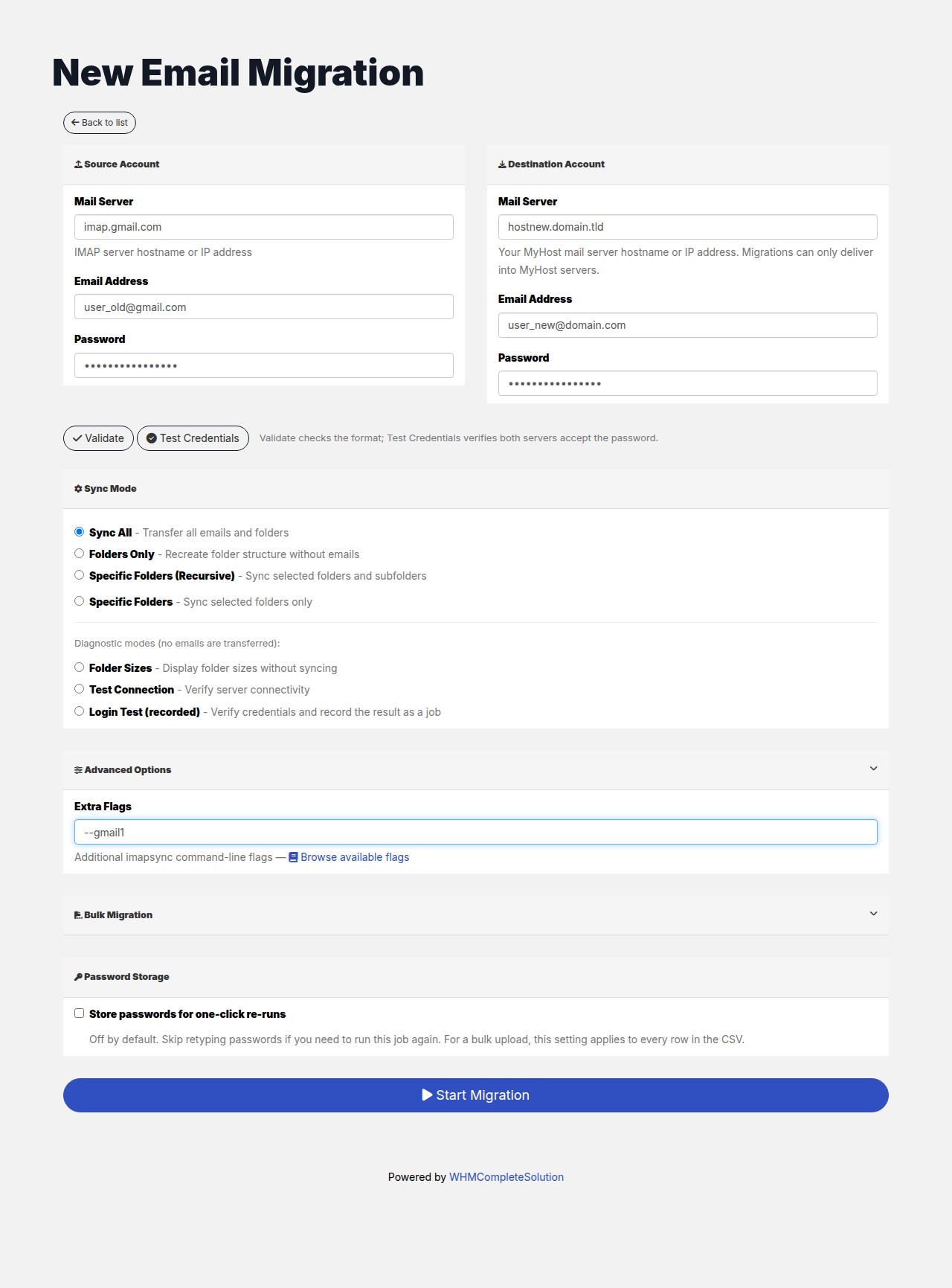
Before starting, click Test Credentials. Both sides should show as verified. If the source side says "Authentication failed", see If the migration doesn't work below. Then click Start Migration.
How your Gmail labels arrive
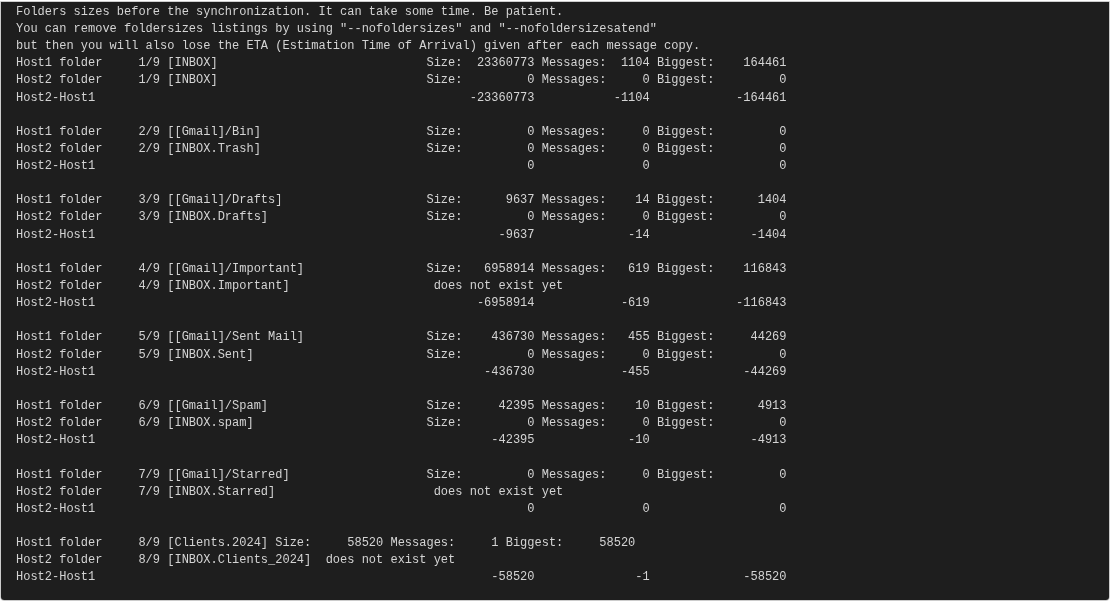
With --gmail1, Gmail's folders go into the matching MyHost folders, and each of your own labels becomes a folder with the same name.
| In Gmail | In your MyHost mailbox |
|---|---|
| Inbox | Inbox |
| Sent Mail | Sent |
| Drafts | Drafts |
| Bin | Trash |
| Spam | Junk |
| Important, Starred | Folders called Important and Starred |
| Your own labels | A folder for each label. A full stop in a label name becomes an underscore, so Clients.2024 arrives as Clients_2024. |
| All Mail | A folder called All Mail, holding only the messages that aren't in any other folder (mail you archived without a label) |
Each message is copied once. In Gmail, one message can sit under several labels at the same time. In your MyHost mailbox, a message lives in one folder only. The migration puts each message in the first folder it finds it in, starting with the Inbox, and skips it everywhere else. So:
- A message in your Inbox that also has a label stays in Inbox. It doesn't appear in the label's folder too.
- The Important, Starred and All Mail folders, and some label folders, can end up empty. That's expected: their messages are already in another folder.
- Your new mailbox ends up with about as many messages as Gmail's All Mail, plus your spam. The log's "Messages skipped" line counts the extra label copies that were left out, so it can be a large number.
How long it takes
--gmail1 sets a speed limit so a large migration doesn't download too much from Gmail too quickly:
- The first 3 GB of a migration is copied without a speed limit.
- After 3 GB, the migration slows down to at most 40 KB per second (about 140 MB per hour).
Real speeds vary. They depend mostly on how many messages you have and how quickly Gmail sends them. In our testing, a Gmail mailbox with about 1,500 messages (25 MB) took about 10 minutes.
- A migration stops after 6 hours. If a large mailbox hasn't finished by then, mail already copied stays in your new mailbox. Run it again (see Cancel, clone or re-run in Migrating your email to MyHost) and it continues from where it stopped, without making duplicates.
- To get recent mail across first, add
--maxage 30after--gmail1(--gmail1 --maxage 30), then run it again with only--gmail1for the rest.
After the migration
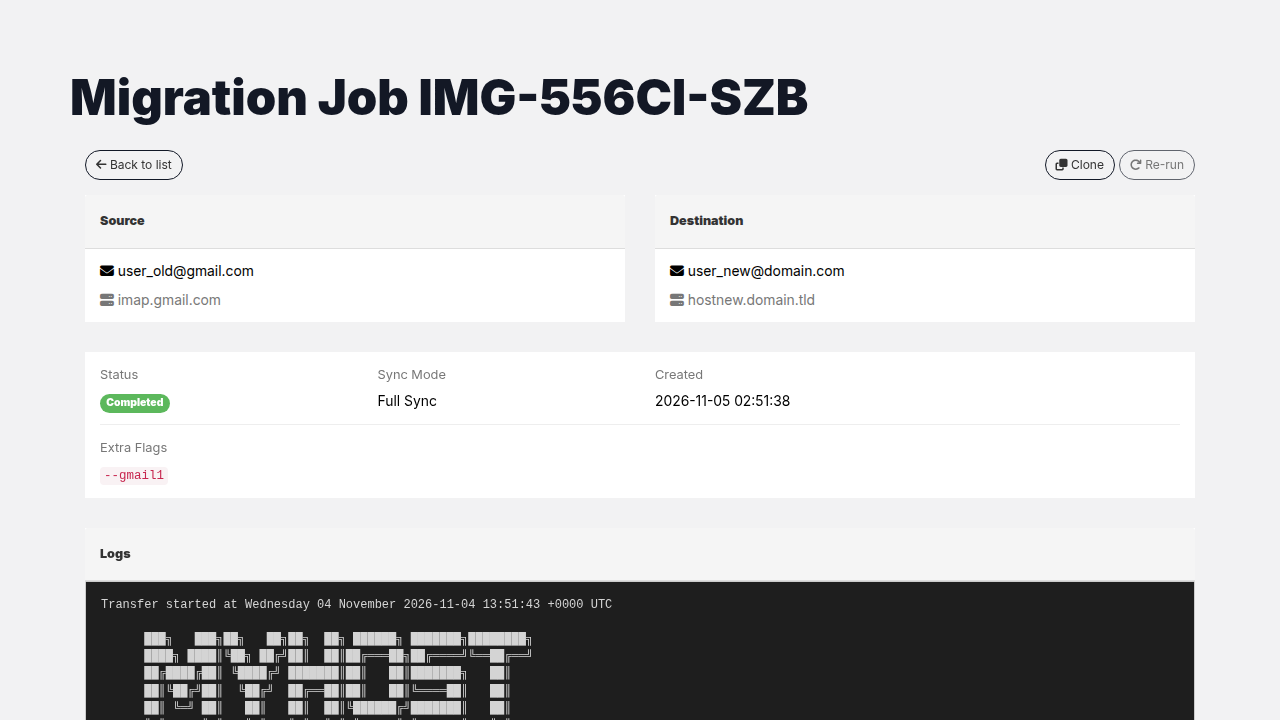
When the migration shows Completed, its page also shows --gmail1 under Extra Flags, so you can tell it ran with the Gmail option.
- Check your MyHost mailbox has the folders and mail you expect.
- Delete the app password: go back to myaccount.google.com/apppasswords and click the bin icon next to it. Nothing else uses it, and it gives full access to your Google account.
If you change your Google password, Google cancels all your app passwords. A Re-run after that fails at sign-in. Create a new app password and use Clone to start the migration again with it.
If the migration doesn't work
"Authentication failed" on Test Credentials, or "We couldn't sign in to your old (source) mailbox" on the migration
- Check you used the app password, not your normal Gmail password. Google rejects the normal password even when it is correct.
- Type the app password again by hand, without spaces.
- Check Email Address is your full Gmail address.
- If you changed your Google password since creating the app password, create a new app password.
- Sign in to Gmail in your browser and approve any security check Google shows, then try again.
Your mail arrived two or three times, or Sent mail is in a "[Gmail]" folder
The migration ran without --gmail1. Delete the duplicated mail from your new mailbox, or ask our support team to empty it for you, then run the migration again with --gmail1 in Extra Flags.
For any other message, read Troubleshooting email migrations. If you've tried these steps and it still fails, open a ticket from your MyHost account or email support@myhost.nz. Never send your app password in a ticket.
