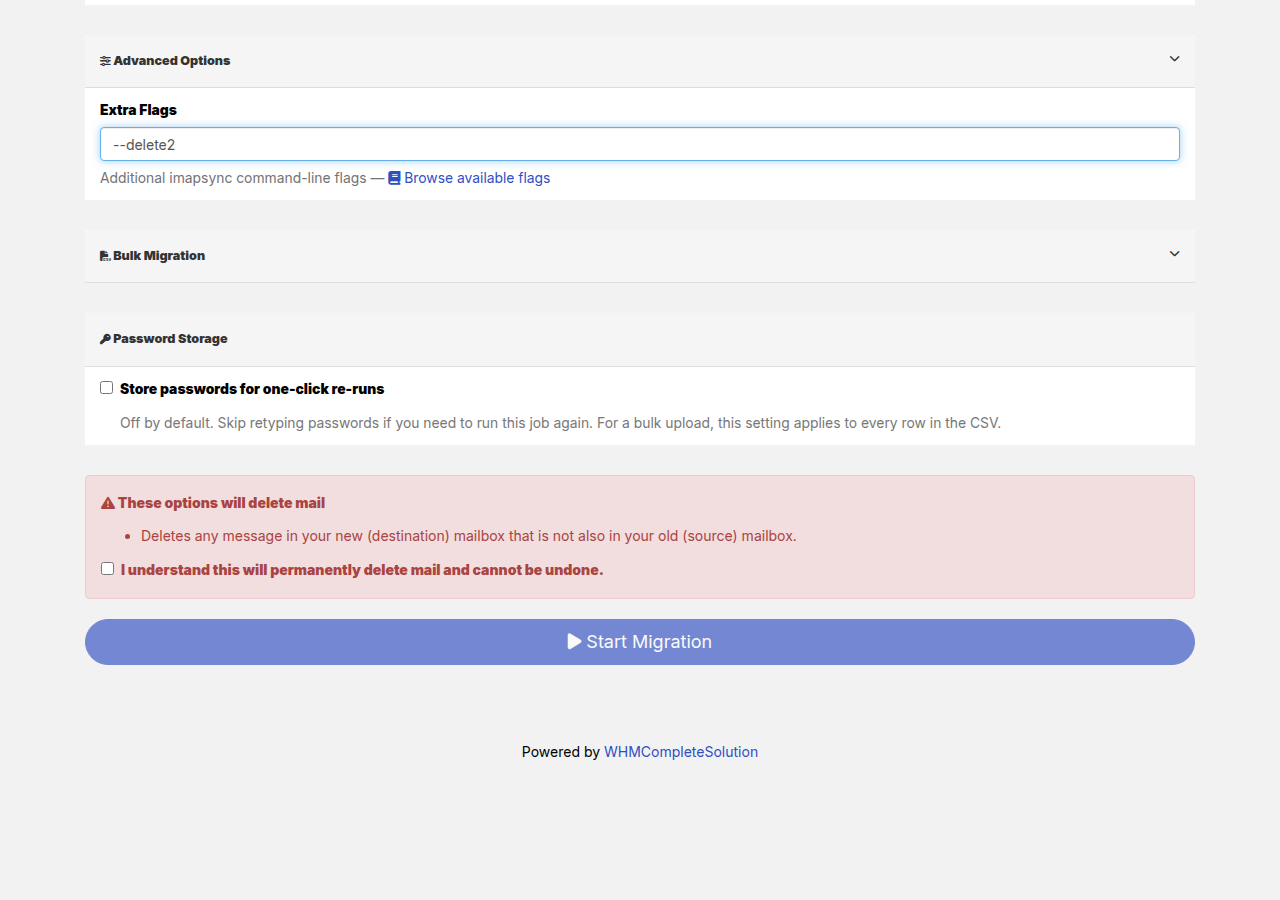
The Imapsync Migration Tool has a selection of Advanced Options available for you to use when you migrate your email to MyHost.
(Most migrations don't need to use Advanced Options. If you're unsure at all, leave the Advanced Options section closed.)
Extra Flags
Some of the flags available in Advanced Options deliberately DELETE emails. While this functionality is available for you to use, we don’t recommend using these Extra Flags unless you know exactly what you’re doing.
If you’ve opened the Advanced Options section, you’ll see a text box below the Advanced Options heading for you to add Extra Flags.
Selecting Browse available flags opens a searchable list. Click + on a row to add that flag. You can also add options by typing them as text.
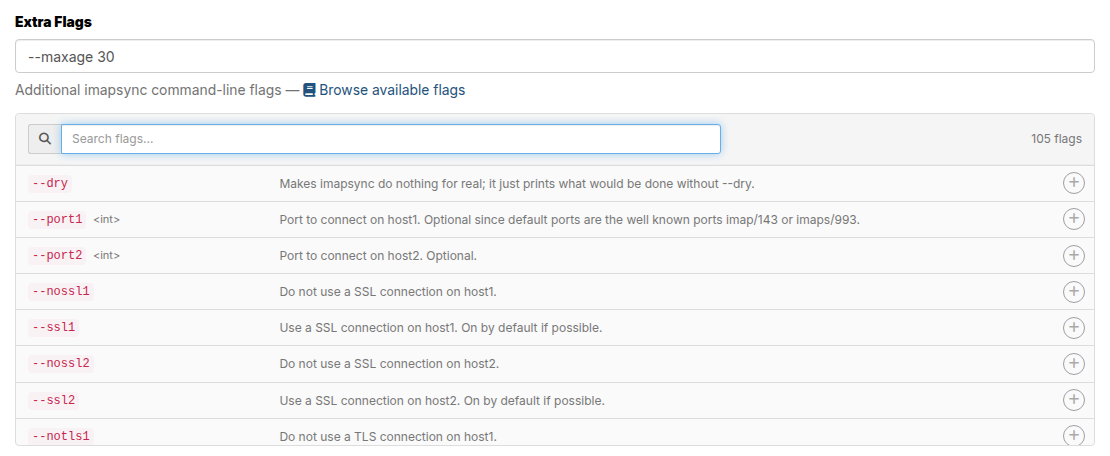
Some Extra Flags that may be most useful include:
| Flag | What it does |
|---|---|
--maxage 30 |
Copies only mail from the last 30 days (change the number as needed). Handy to move recent mail first. |
--automap |
Matches standard folders that have different names on each side, such as "Sent Items" and "Sent", so they end up in one folder. |
--subfolder2 OldMail |
Puts everything from the old mailbox inside one folder called "OldMail", kept apart from mail already in the new mailbox. |
--port1 <number> |
Connects to your old mail server on a different port. |
Flags that delete mail
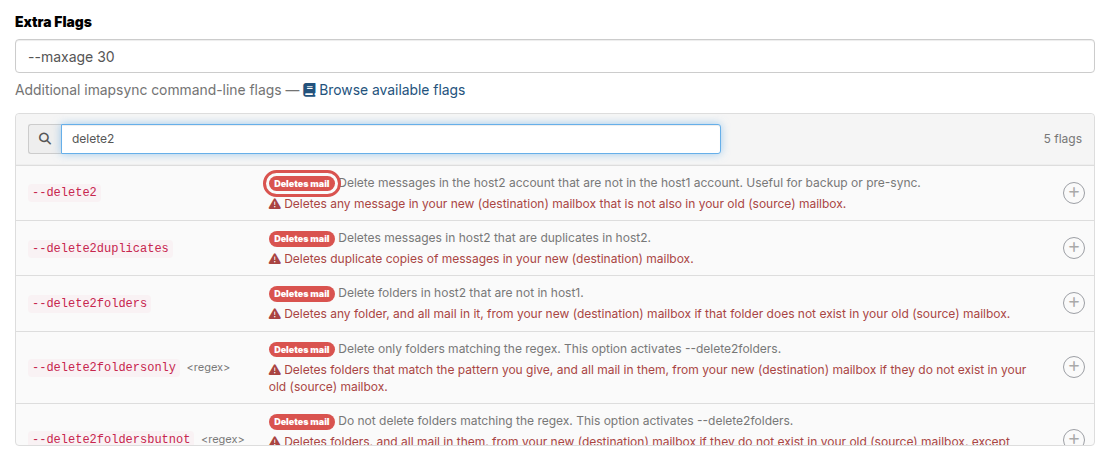
Seven of these flags carry a red Deletes mail label. Leave these flags alone unless you are sure (these flags are all in the Advanced Options category for a reason). If you run the migration tool with these enabled, emails will be deliberately permanently deleted from your inboxes. Proceed with caution.
| Flag | What it deletes |
|---|---|
--delete1 |
Deletes each message from your old (source) mailbox once it has been copied, so the old mailbox ends up empty. |
--expunge1 |
Permanently removes messages that are already marked as deleted in your old (source) mailbox, so they can no longer be recovered there. |
--delete1emptyfolders |
Deletes every empty folder from your old (source) mailbox, except the Inbox. |
--delete2 |
Deletes any message in your new (destination) mailbox that is not also in your old (source) mailbox. |
--delete2duplicates |
Deletes duplicate copies of messages in your new (destination) mailbox. |
--delete2folders |
Deletes any folder, and all mail in it, from your new (destination) mailbox if that folder does not exist in your old (source) mailbox. |
--expunge2 |
Permanently removes messages that are already marked as deleted in your new (destination) mailbox, so they can no longer be recovered there. |
If you add one of these flags, Start Migration will stay disabled until you tick "I understand this will permanently delete mail and cannot be undone."