This article helps you understand the message on a failed migration and fix what caused it yourself. It also covers migrations that finished but don't look the way you expected.
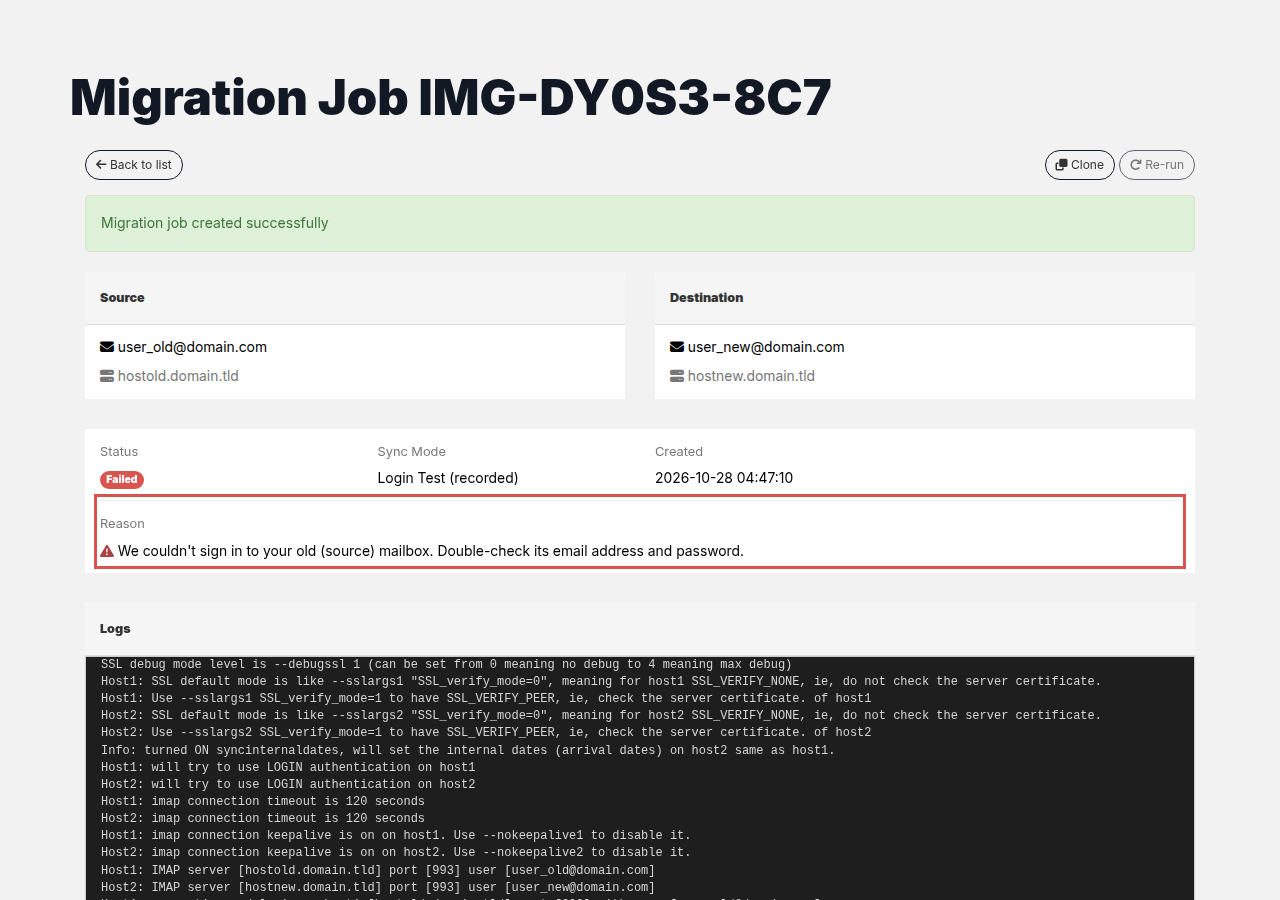
Open the migration from the Email Migrations list. The Reason sits under Status, and the last lines of Logs often add detail.
Find the message you see below. Each heading is the exact text shown on the page.
Many fixes below end with Re-run or Clone. If Re-run is greyed out (passwords weren't stored), use Clone and type the passwords again.
Contents
- Reading the log
- Problems found before the migration starts
- Sign-in problems
- Can't reach the mail server
- Folder problems
- After the migration: things look different
- Problems with the new mailbox
- Problems with advanced options
- Migration stopped before finishing
- The migration seems slow or stuck
Reading the log
The Reason under Status is the first thing to read. It sums up the problem in one sentence, and each heading below is one of those sentences.
The Logs panel shows everything the migration did. You don't need to read all of it: the last 10 to 20 lines usually show the problem. Look for these words:
| In the log | What it usually means | See |
|---|---|---|
Authentication failed, AUTHENTICATIONFAILED, Error login |
A mailbox didn't accept the email address or password. | Sign-in problems |
Connection refused, timed out, can not open imap connection |
A mail server couldn't be reached. | Can't reach the mail server |
certificate verify failed, Can not go to tls |
The secure connection failed. | Can't reach the mail server |
OVERQUOTA, Quota, Mailbox is full |
The new mailbox is full. | Problems with the new mailbox |
could not append |
A message couldn't be saved in the new mailbox. | Problems with the new mailbox |
Folders synced : 0/0 |
No folder matched the names you chose. | After the migration: things look different |
Host1 in the log is your old mailbox, and Host2 is the new one.
Problems found before the migration starts
These messages appear on the create form after you click Start Migration, usually in red under the field. No migration is created. Correct the entry and try again.
CSV errors are covered in Migrating several mailboxes at once with a CSV file.
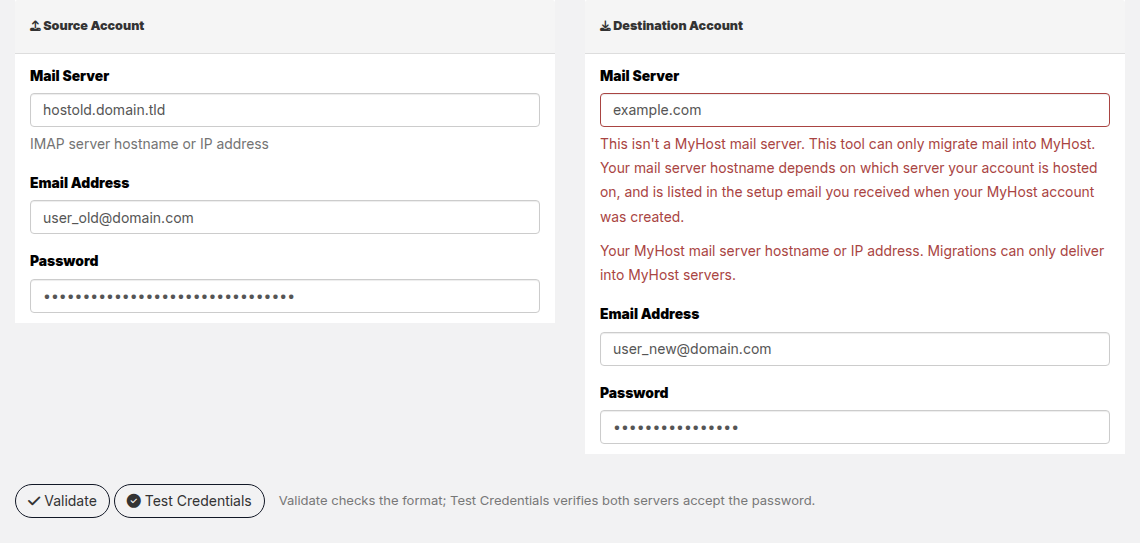
This isn't a MyHost mail server
What it means: Destination Mail Server is not a MyHost mail server, so nothing is copied.
What to do:
- Check you haven't swapped the two panels. Source is your old mailbox, Destination is your new MyHost mailbox.
- Copy the mail server name from your MyHost setup email.
- Enter it in Destination Mail Server, for example
hostnew.domain.tld. - Click Start Migration again.
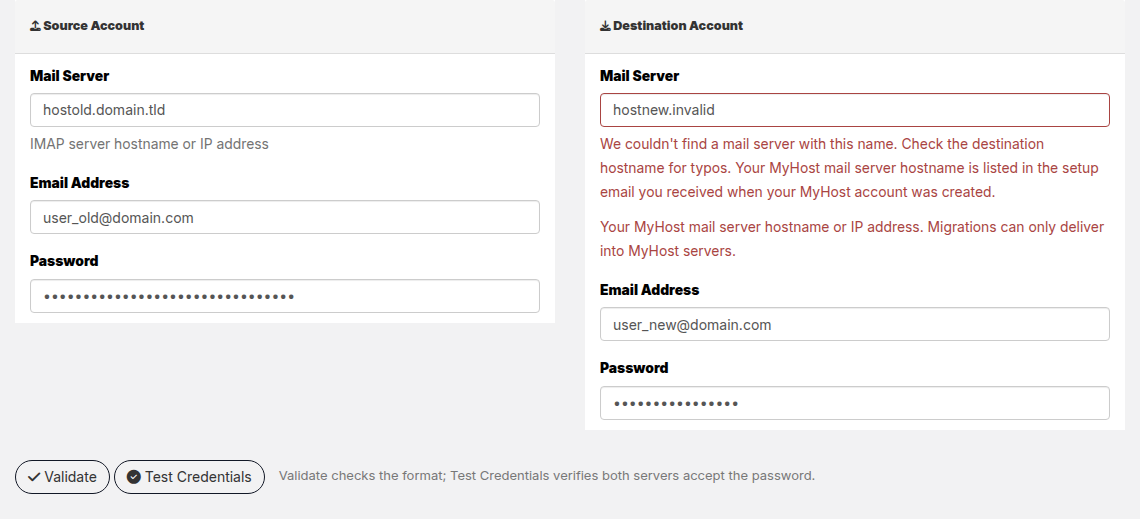
We couldn't find a mail server with this name
What it means: The name could not be looked up. The usual cause is a typo.
What to do:
- Compare it with the setup email, character by character.
- Use the mail server name, not your website address.
- Click Start Migration again.
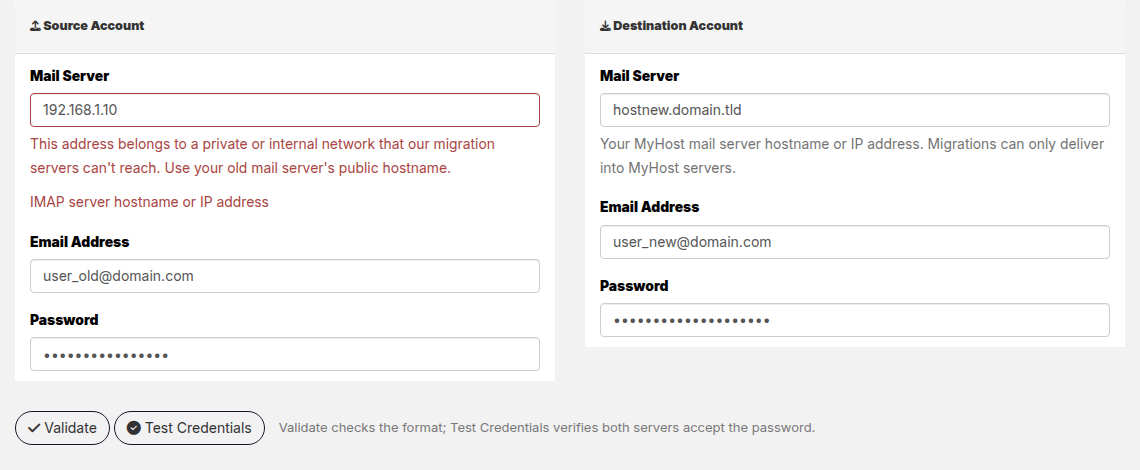
This address belongs to a private or internal network that our migration servers can't reach
What it means: Source Mail Server is an internal address such as 192.168.1.10, which our servers cannot reach from the internet.
What to do:
- Ask your old provider for the public IMAP server name.
- Enter it, for example
hostold.domain.tld. - Click Start Migration again.
We couldn't look up this mail server just now
What it means: The name could not be looked up at that moment. This is usually temporary.
What to do:
- Wait a few minutes.
- Check the spelling.
- Click Start Migration again.
Unable to connect to the migration service
What it means: The page could not reach the service that creates migrations. Nothing was created.
What to do:
- Wait a minute, then reload the page.
- Fill in the form and try again.
The migration is no longer in a state that allows this
What it means: The migration changed while your page was open, perhaps in another tab.
What to do:
- Reload the page.
- Check the Status.
- Repeat it only if it still applies.
Sign-in problems
A mailbox rejected the email address or password, so nothing was copied.
We couldn't sign in to your old (source) mailbox
What it means: Your old provider did not accept the email address or password. This often happens even when the password is right, because the provider wants an app password instead.
What to do:
- Check Email Address is the full old address, for example
user_old@domain.com. - Type the password by hand. A copied password often picks up a space.
- If your old mailbox uses two-step verification (a code on your phone when you log in), your normal password won't work here. Create an app password in your old provider's account or security settings (search their help pages for "app password") and use that. For Gmail, follow the steps in Migrating your email from Gmail: Gmail always needs an app password.
- Check IMAP access is on, and that you can log in to its webmail.
- If this was a Re-run and you have changed the password since, the stored password is out of date.
- Fix the details with Clone, then click Test Credentials before starting.
We couldn't sign in to your new MyHost mailbox
What it means: Your new mailbox did not accept its password.
What to do:
- Type the password by hand in Destination Account.
- Check the mailbox exists in MyHost.
- If this was a Re-run and you have changed the password since, the stored password is out of date.
- Use Clone, type the password again, and click Test Credentials.
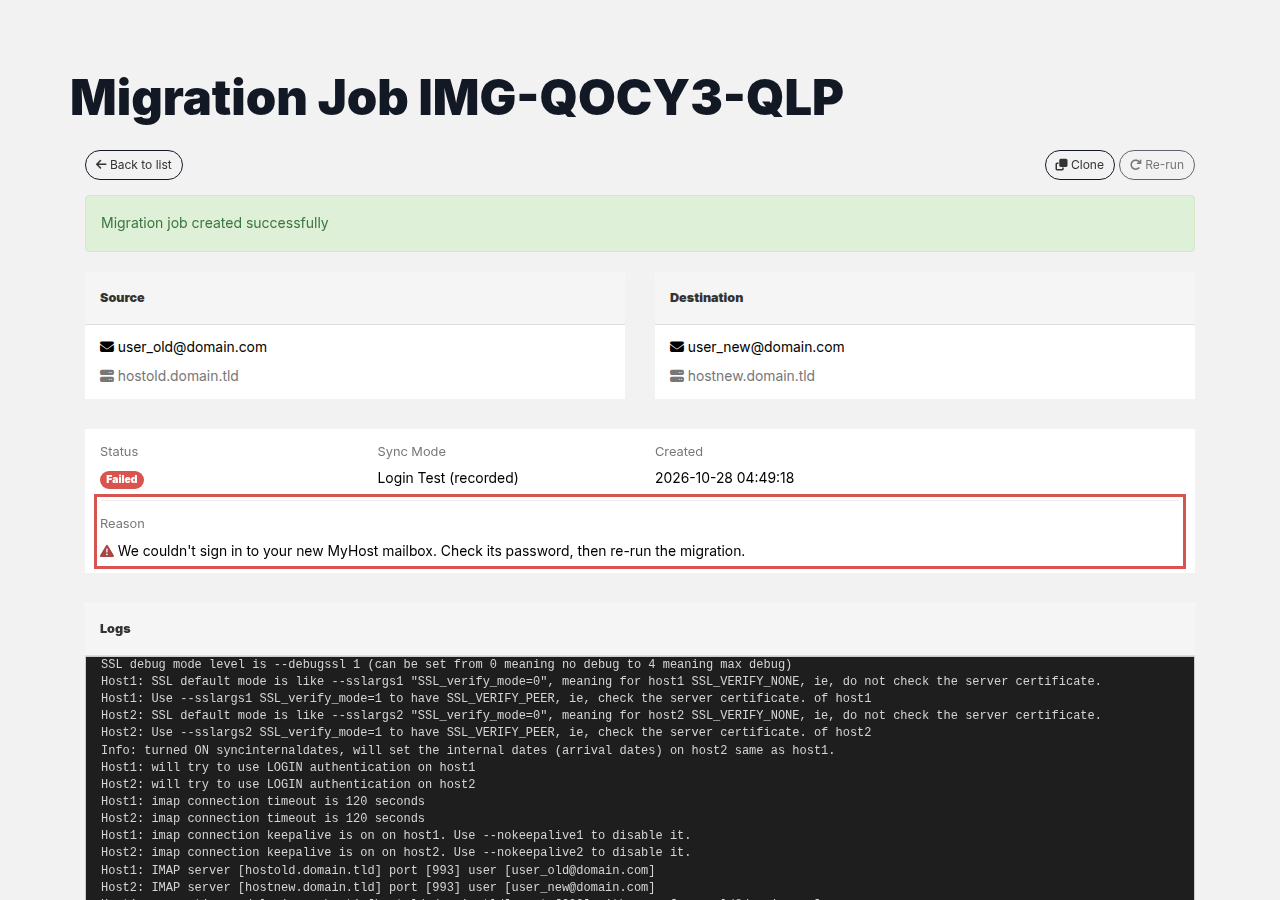
We couldn't sign in to one of the mailboxes
What it means: The tool cannot tell which mailbox failed, so check both.
What to do:
- Click Test Credentials on the create form to see which side fails.
- Check both are full email addresses.
- Retype both passwords by hand, using an app password where needed.
- Fix the details with Clone, then test again.
Can't reach the mail server
The tool could not open a connection, or the connection was not secure.
We couldn't reach your old mail server
What it means: Your old server did not answer. The address or port may be wrong, or the provider may be blocking us.
What to do:
- Check Source Mail Server holds the IMAP name, not the website address (
hostold.domain.tld, notwww.domain.com). - Ask your old provider for the correct server name and port.
- Some providers block connections from tools like this one, or from other countries. Ask your old provider to allow IMAP connections from our migration server, IP address
223.165.71.171. - Use Test Connection to check again without copying.
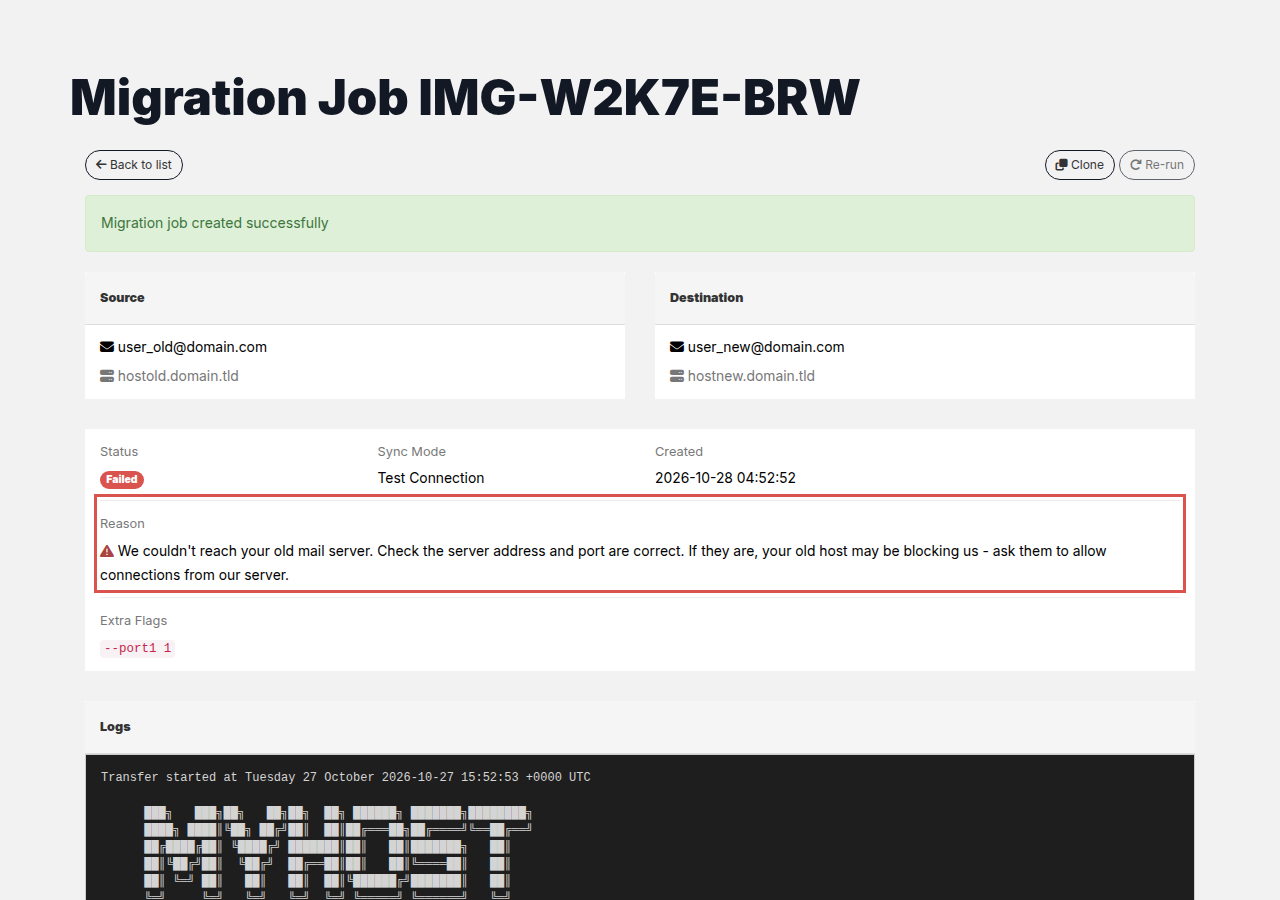
We couldn't open a connection to one of the mail servers
What it means: One of the two servers could not be reached, and the message does not say which.
What to do:
- Click Test Credentials to see which side fails.
- Check that side's server name and port.
- If the old side fails, ask your old provider about its IMAP name and outside connections.
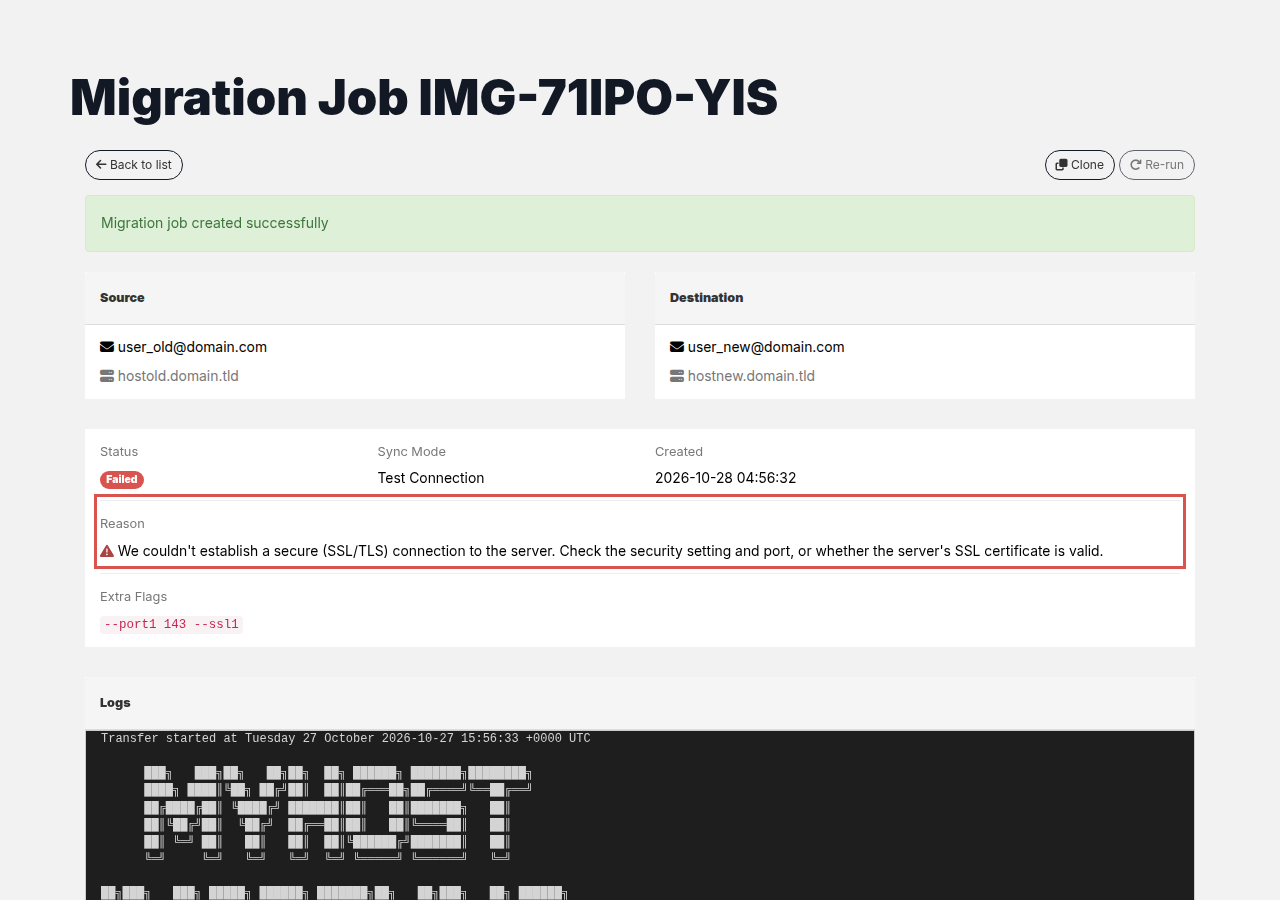
We couldn't establish a secure (SSL/TLS) connection to the server
What it means: The server answered, but the secure connection failed. Usually the port or security setting is wrong, or the certificate is invalid.
What to do:
- Check the port. The tool uses 993 with SSL, or 143 without.
- If you set
--port1or--port2, remove it and try again. - Ask your old provider whether the server needs SSL and which port.
Your old mail server's address now points at a private or internal network that our migration servers can't reach, so the migration never started
What it means: The saved address now leads to a private network, so the migration could not begin.
What to do:
- Use Clone to open the settings.
- Replace the address with the public hostname, for example
hostold.domain.tld. - Start again.
We couldn't look up your old mail server when the migration was due to start, so it never started
What it means: The name could not be looked up when the migration was due to begin. This is usually temporary.
What to do:
- Re-run in a few minutes.
- If it happens again, check the address for typos.
We couldn't reach your new MyHost mail server
What it means: The new MyHost server did not answer.
What to do: Check the Destination Host matches the server name in your MyHost setup email, then Re-run in a few minutes.
Folder problems
Folder names must match exactly, including capital letters and the parent folder. Servers write subfolders differently, for example INBOX.Archive or Archive/2024. Run Folder Sizes first and copy the names exactly as its log lists them (see Migrating your email with the Imapsync Migration Tool).
The folder you chose doesn't exist in your old mailbox
What it means: The name did not match a folder in the old mailbox.
What to do:
- Run Folder Sizes and copy the names from its log, checking the case and parent folder.
- Use Specific Folders (Recursive) for subfolders.
- Use Clone with the corrected names.
We signed in to your old mailbox but couldn't open one of its folders
What it means: The sign-in worked, but one folder could not be opened. It may have been renamed or removed.
What to do:
- Check the folder still exists with your old provider.
- Run Folder Sizes to compare names.
- Re-run the migration.
We couldn't create one of your mail folders on the destination, usually because of an unusual character in the folder name
What it means: The new mailbox refused a folder name, usually because of a character it does not allow.
What to do: The Logs name the folder. Rename it with your old provider so it uses only letters, numbers and spaces, then Re-run.
After the migration: things look different
The migration shows Completed, but the new mailbox doesn't look the way you expected.
The migration completed, but some folders or messages are missing
What it means: A migration can finish as Completed and still copy little or nothing. With Specific Folders, an inexact name does this, and no Reason appears.
What to do:
- Check the end of Logs for "Folders synced". "0/0 synced" means no folder matched.
- Run Folder Sizes for the exact names.
- Check spelling and capital letters, and include the parent folder (for example
INBOX.Archive, notArchive). - Use Specific Folders (Recursive) to include subfolders.
- Use Clone with the corrected names.
Sent, Junk or Trash appear twice
What it means: Providers name standard folders differently, for example "Sent Items" and "Sent", or "Deleted Items" and "Trash". The tool copies folders by name, so you can end up with both.
What to do:
- Move the messages into the folder you want to keep, then delete the empty one. Or:
- For your next migration, add
--automapunder Advanced Options. It matches standard folders with different names, so they end up in one folder.
Gmail mail arrived two or three times, or is in [Gmail] folders
What it means: The migration from Gmail ran without --gmail1. Gmail shows one message under every label it has, so each label was copied as a separate folder.
What to do:
- Delete the duplicated mail and the [Gmail] folders from your new mailbox.
- Use Clone, add
--gmail1under Advanced Options, and start the migration again. See Migrating your email from Gmail.
With --gmail1, empty Important, Starred or All Mail folders are normal: their messages are already in another folder.
The new mailbox is a different size from the old one
What it means: Each mail server measures mailbox size its own way, so the totals rarely match exactly.
What to do:
- Compare the number of messages instead of the size. Run Folder Sizes: Host1 is the old mailbox and Host2 the new one.
- If the counts are lower than expected, check whether the migration used
--maxageor Specific Folders, which copy only part of the mailbox. - Run the migration again. Messages already copied are skipped, and anything missing is copied.
The mail is there, but my email program doesn't show it
What it means: Webmail shows the new mailbox straight away, but some email programs need to refresh their folder list.
What to do:
- Log in to webmail for the new mailbox. If the mail is there, the migration worked.
- In your email program, refresh or re-sync the account, and check new folders are ticked (subscribed) in its folder settings.
Problems with the new mailbox
These messages come from the new mailbox. Check it has enough space.
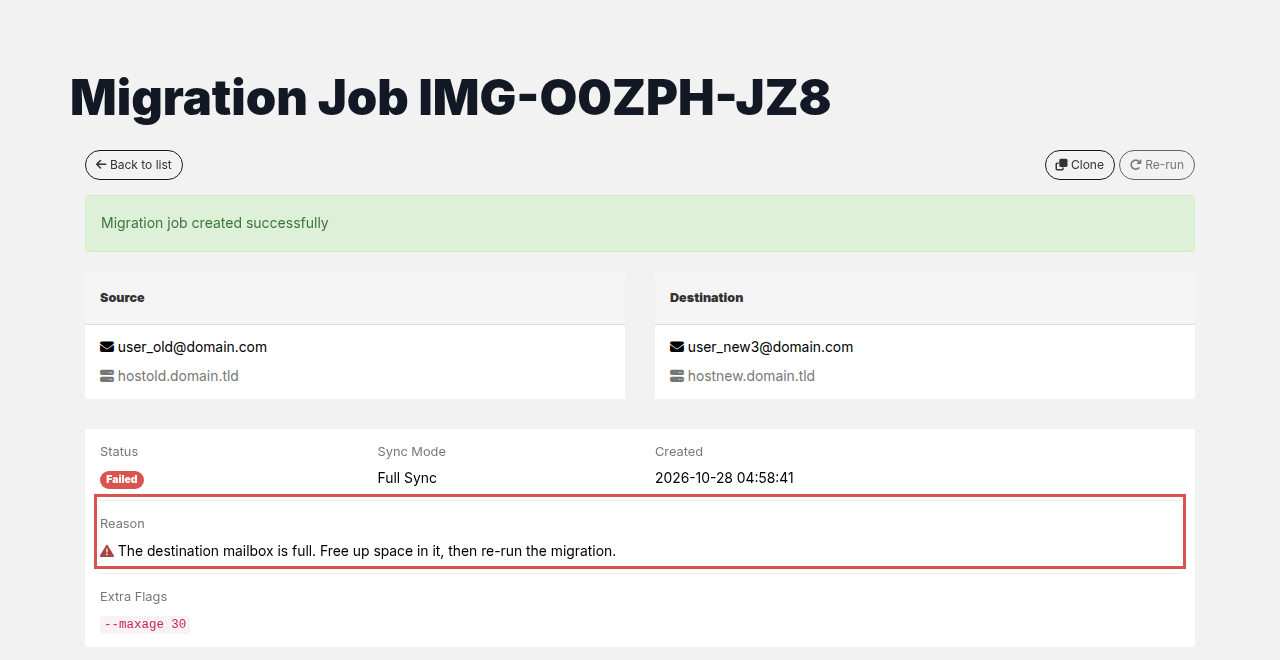
The destination mailbox is full
What it means: The new mailbox has no space left, so copying stopped partway.
What to do:
- Check its quota and free space.
- Compare it with the size of your old mailbox: run Folder Sizes and read "Host1 Total size" at the end of its log.
- Free up space, or raise the new mailbox's quota.
- Re-run. Messages already copied are skipped, so it continues where it stopped.
One or more messages are larger than the destination mailbox will accept, so they couldn't be copied
What it means: Some messages are larger than the new mailbox's maximum message size.
What to do: Everything else was copied. The Logs name the skipped messages. If you need them, save them or their attachments from your old webmail.
The destination server refused one or more messages because its virus scanner flagged them
What it means: The virus scanner on the new server rejected some messages. Everything else was copied.
What to do:
- Check the new mailbox; the rest should be there.
- If you need a flagged message, ask the sender to send it again, or save it from your old webmail.
Some messages couldn't be copied to the destination
What it means: Some messages failed to copy. This is often temporary.
What to do: Re-run.
We couldn't open your new mailbox
What it means: The new mailbox could not be opened.
What to do: Check the new mailbox exists in MyHost and that you can log in to its webmail, then Re-run.
We couldn't open one of the mailboxes for this migration
What it means: One of the two mailboxes could not be opened.
What to do: Check you can log in to both mailboxes' webmail with the details you entered, then Re-run.
Problems with advanced options
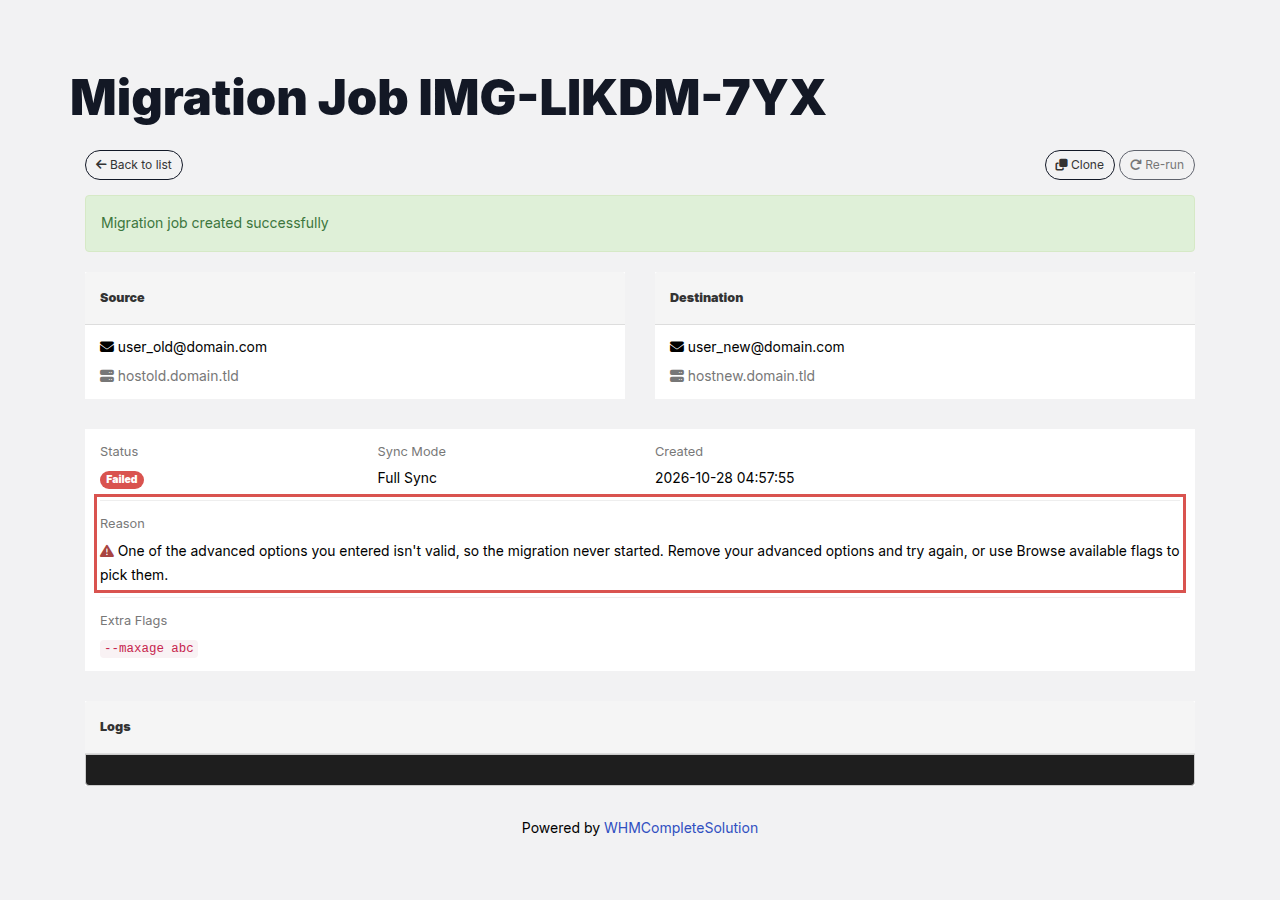
One of the advanced options you entered isn't valid, so the migration never started
What it means: A flag in Extra Flags is not valid. The form accepts the text and creates the migration, which then fails before copying. For example, --maxage abc is accepted, then fails with this message.
What to do:
- Remove all extra flags and start again.
- Add flags back one at a time.
- Pick flags from Browse available flags instead of typing.
- Check the value suits the flag;
--maxageneeds a number, for example--maxage 30.
Migration stopped before finishing
The migration ended before all mail was copied. Mail already copied stays in the new mailbox.
The migration ran longer than the time limit and was stopped
What it means: Each migration has a 6-hour limit. This one reached it.
What to do:
- Re-run; it skips what arrived and continues.
- To get recent mail first, add
--maxage 30, then run again without it.
This migration was interrupted by maintenance on our side
What it means: Maintenance on our servers stopped the migration.
What to do: Re-run.
We could sign in to your old mailbox but couldn't read some messages from it
What it means: The sign-in worked, but some messages could not be read. This is often your old provider limiting how fast we read.
What to do:
- Re-run; it picks up where it stopped.
- If it stops at the same place, ask your old provider about rate limits.
The migration stopped unexpectedly
What it means: The migration ended for an internal reason.
What to do: Re-run.
The migration didn't complete and we couldn't determine why
What it means: The migration ended without recording a clear cause.
What to do: Re-run.
Something went wrong with this migration and we couldn't work out what
What it means: The migration failed and no other message applies.
What to do: Re-run. If it fails again, open a ticket from your MyHost account and quote the migration reference, for example IMG-12345-ABC.
The migration seems slow or stuck
If Logs still adds lines, the migration is working. Large mailboxes and slow servers take time.
The limit is 6 hours. Anything copied stays, and re-running continues from there. To get recent mail first, add --maxage 30, then run again without it. The log shows how many messages are left and an estimated finish time. See Reading the live log in Migrating your email with the Imapsync Migration Tool.
