ImunifyAV is a security tool we use on all our servers to protect websites from malware. It continuously scans accounts for infected or suspicious files and automatically notifies our customers via email if anything is detected. Keeping your site free from malware is important not only for your data and visitors but also for the overall performance and reputation of your website. This article explains what these reports mean, how to review them, and how to keep your site secure.
Understanding Your Malware Report Email
When ImunifyAV detects suspicious files, you'll receive an automated email showing:
- Scan Date: When the scan was performed
- Threat Type: The category of malware detected
- Total Infected Files: How many files were flagged
Below that, you'll see a list of infected files with their locations and malware signatures (codes like SMW-BLKH-SA-...).
These reports are informative alerts to help you maintain your site's security. Follow the steps below to review and address them.
Step 1: Review the Infected Files for Patterns
Before taking action, look at the file paths in your email report. Common patterns can help identify what needs attention:
Plugin/Theme-related files:
- Path contains:
/wp-content/[plugins]/[plugin-name]/ - Path contains:
/wp-content/[themes]/[theme-name]/
This could mean the plugin/theme may be outdated or vulnerable, so you might want to update it to ensure it benefits from the latest security patches.
Upload folder files:
- Path contains:
/wp-content/uploads/
This could mean that files were uploaded through the WordPress dashboard or a plugin, so you might want to remove those and make sure your passwords have been updated.
Suspicious root files:
- Examples:
wp-config-backup.php,admin.php(files that shouldn't exist)
This could indicate a possible backdoor to execute malicious scripts. You might want to remove those and review your passwords and site.
Note: If the infected files in your report don't fit any of the patterns above, please investigate further to identify what might have caused the infection.
For details about the malware codes shown in your report (like SMW-BLKH-SA-...), see the "Understanding Malware Signature Codes" section below.
Step 2: How to Locate and Remove Infected Files
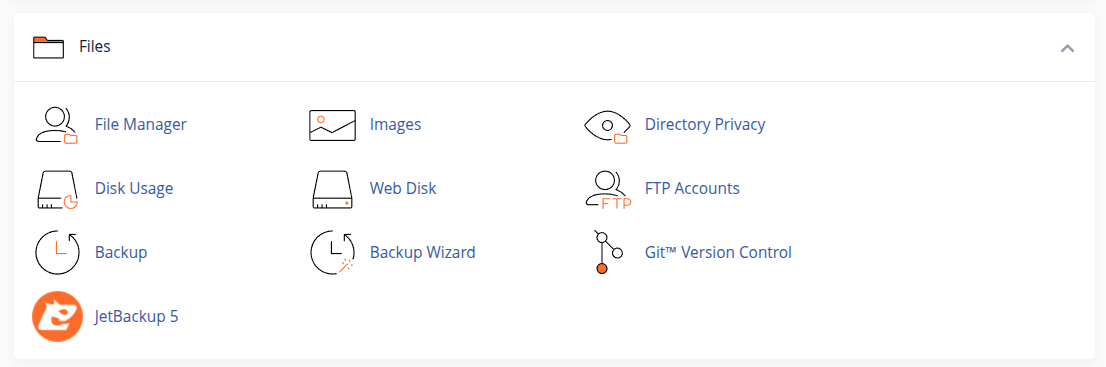
You can remove the infected files on your site using the File Manager feature in your cPanel account. You can access it by clicking on File Manager under the Files module, as shown below:

From there, go to the path specified in the malware report (e.g., /home/<username>/public_html/wp-content/themes/Divi/core/_metadata.php), select the corresponding file, and use the buttons on the top bar to manage the affected file.
Tip: Before deleting, you may want to:
- Create a backup using the
JetBackup5tool in your cPanel by using the Create Backup On Demand feature. - Or download the infected files first (in case you need to restore)
Understanding Malware Signature Codes (Technical Details)
When reviewing the automatic malware report sent to your email, you will see entries like this next to each file:
SMW-BLKH-SA-CLOUDAV-php.bkdr.fakeadmin.wp-32526-1
These follow the pattern:
<type>-<detected>-<ID>-<filetype>.<mlwcatergory>.<mlwclassification>
| Field | Description |
|---|---|
<type> |
SMW - server malware, CMW - client malware. |
<detected> |
SA (stand-alone) - The entire file is malicious.INJ (injections) - The malware is injected into a legitimate file. |
<ID> |
Signature. |
<filetype> |
This is the file extension (e.g., .html, .rb, .sh). |
<mlwcategory> |
A malware category (e.g., bkdr – helps attackers gain partial or complete access to the victim). You can find more information about the malware categories at the following link: Malware categories. |
<mlwclassification> |
This value varies depending on the purpose of the malware. There are multiple different classifications, so please refer to the following link for more detailed information: Malware classification. |
For more detailed information, please refer to: Imunify Malware File Reasons
Step 3: Prevent This From Happening Again
If the files are removed without addressing the root cause, your site remains vulnerable to having more malicious files injected. To effectively prevent this from happening, we recommend the following steps:
- Keep plugins and themes updated: Make sure the plugins and themes on your site are up to date so they can benefit from the latest security patches, as attackers may take advantage of known vulnerabilities in outdated versions to inject malicious code into your site.
- Use strong passwords: Use strong, randomly generated passwords. There are multiple tools to generate these; here is an option from Avast: Random Password Generator
- Check WordPress integrity: From the WordPress Management page, click on
Check WordPress Integrityto ensure the WordPress core files have not been altered. If they have, click onReinstall WordPress Core. - Restore from backup if needed: If you suspect a recent change to your site may have caused the issue, you can roll back to a backup of your site using the JetBackup5 tool in your cPanel account by following the steps outlined in this article from our Knowledge Base: How do I restore my site from backup using JetBackup 5? How can I recover my website?.
How Can I Know If My Site Is No Longer Infected?
We have automated jobs on our servers that run these scans on a weekly basis, with the exact day varying depending on the server. If you haven't received another malware report more than a week later, it indicates that our malware scan is no longer detecting malicious files on your account.
Alternatively, you can contact us at support@myhost.nz to request a manual scan, and we will inform you if any malware is detected on your account.
Can These Be False Positives?
We don't recommend jumping to the conclusion that these are false positives, as infected files can negatively impact your site. However, if you have carefully reviewed them and are confident that these files are not infected and are indeed false positives, please let us know so we can add them to our whitelist. Once whitelisted, they should no longer be marked as malicious.