Two-factor authentication adds an extra security layer to your MyHost account. To keep everyone protected, we’ve made 2FA compulsory for all MyHost accounts.
Even if someone knows your password, with 2FA enabled they won't be able to access your account without accessing the code sent to your phone or your email.
Choose your 2FA method
MyHost accounts have the choice of two 2FA methods:
- App-based (time-based tokens): Get codes through an authenticator app like Google Authenticator.
- Email verification: Get one time passwords sent to the email you use logging in to MyHost.
We recommend the more secure, app-based option. Email 2FA is less secure because a compromised email inbox would be enough to reset passwords and receive 2FA codes.
When you’re first setting up a MyHost account, or if you haven’t accessed your MyHost account since we made 2FA compulsory, you’ll be required to set up 2FA before accessing the MyHost Client Area.
Setting up 2FA
To set up 2FA on MyHost:
- On the Security Settings page, in the Two-Factor Authentication section select Click here to Enable.
- In the pop-up window, click to choose either Time Based Tokens or Email Two-Factor Authentication.
- Click Get Started.
If you chose Time Based Tokens/app-based 2FA:
- Scan the QR code with an authenticator app such as Google Authenticator.
- Enter in the 6-digit code that the authenticator app generates.
Alternatively, if you chose Email Two-Factor Authentication:
- A code will have been sent the email account you login to MyHost with. Enter that code where it says Enter the authorize code.
Whichever method you use, we encourage you to record the Backup Code in a safe place (you can use this code to access your account without 2FA, so treat it like you'd treat a password).
Switching 2FA method
You can switch between the two 2FA methods at any time:
- From the Client Area, navigate to Security Settings.
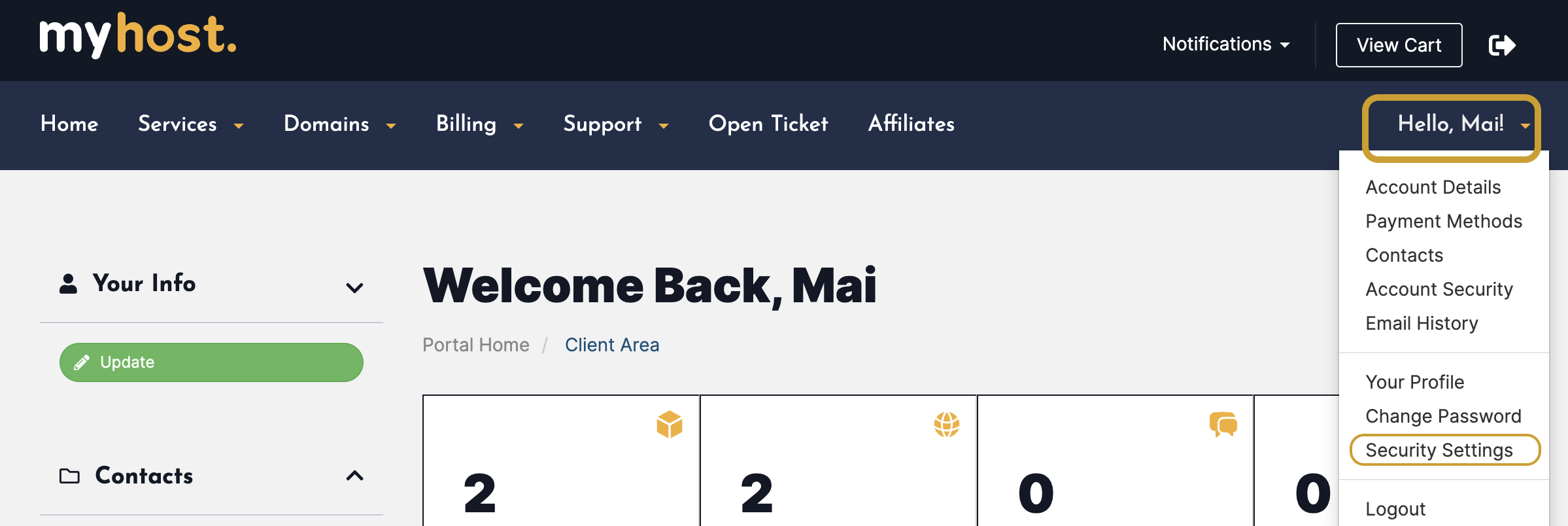
- In the Security Settings screen, select Click here to Disable to remove your current 2FA method.
- Once 2FA is disabled, select Click here to Enable, and follow the above "Setting up 2FA" instructions with your preferred method.