cPanel includes a Temporary Domains feature that lets you build and test a website before you are ready to launch it. It generates a random domain for you automatically, so you can get a site up and reachable without pointing a real domain at our server first.
Temporary domains are for building and testing only and are not intended as permanent addresses. This article covers how to create one, the notice your visitors will see, why browsers and security tools may flag it as “unsafe” or “deceptive”, and how to move onto a real domain when you are ready to go live.
What is a temporary domain?
A temporary domain is an add-on domain that cPanel creates for you automatically, using a random address. It behaves like a normal add-on domain, it has its own folder, is publicly accessible and serves your website files but it is designed to be thrown away once your production domain is ready .
It is ideal when you are still building or migrating a site and your real domain is not yet pointed at our server.
How to create a temporary domain
- Log in to cPanel and open the Domains interface.
- Click Create A New Domain.

3. You will see an option to Choose a Domain Later, which generates a random domain for you.
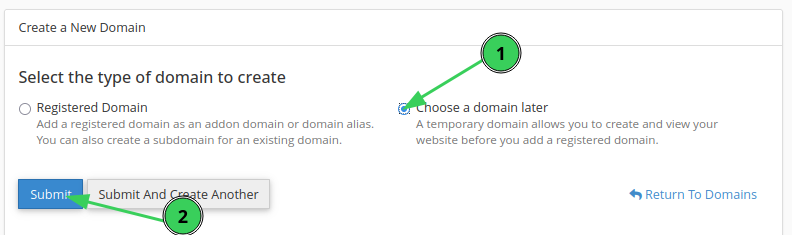
4. Once the temporary domain is created, cPanel gives you an address that you can visit straight away.
Note: Because the address is random, use the link cPanel shows you after creation rather than typing one from memory.
The notice your visitors will see
When someone visits a temporary domain, they are shown a notice explaining that it is a technical domain intended for testing purposes only. Any visitor sees this notice on their first visit.
This is intentional. It prevents a half-finished site from being mistaken for a real one if the random address is ever found,shared or indexed.
Why is there a “Deceptive site ahead” warning?
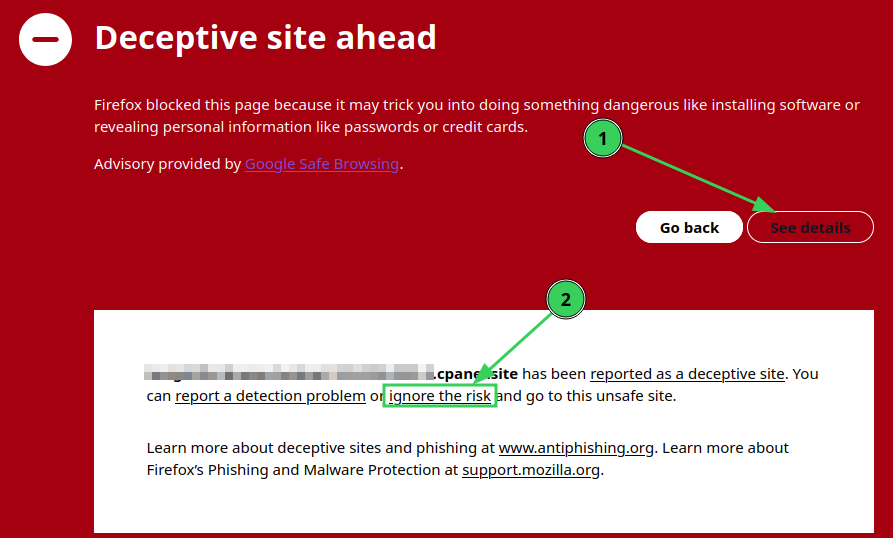
Some visitors may also see a “Deceptive site ahead” screen (in Firefox, Chrome and other browsers) warning that the page may trick them into installing software or revealing personal information, with an advisory from Google Safe Browsing.
This warning is not about your website’s content. Temporary domains use a random address under the shared cpanel.site domain, for example monkey-peanut-crab.103-250-232-5.cpanel.site. That parent domain is shared across cPanel servers worldwide, so if a temporary domain anywhere is reported for phishing, the Safe Browsing warning can be applied to other addresses on the same domain. cPanel confirms the message comes from Safe Browsing reports, and that if a phishing attempt is reported and reviewed before it is cleared, the warning is placed against any domains associated with the attempts.
- It is normally a false positive against the shared temporary-domain parent domain, not a finding about your site.
- It does not affect how your website works, and it no longer applies once you move to your own domain.
- You cannot request a delisting for a temporary domain, because the domain is not yours to claim – only the domain owner can do that.
Note: As with the “Not secure” warning, the best solution while working on the site is to accept the warning provided you are sure it is your website you are working on.
Replacing a temporary domain with a production domain
- Open the Domains interface in cPanel.
- Click Manage on the temporary domain.
- Click Replace with a registered domain.
- Enter the production domain you want to use.
Once your real domain is in place and resolving to our server, AutoSSL can issue a free Let’s Encrypt certificate, and you can enable Force HTTPS Redirect under Domains. The warnings disappear once a trusted certificate covers the address.
Caution: Applications such as WordPress may need their site URL settings updated to reflect the change from the temporary domain to your production domain. In WordPress, this is done under Settings > General in the admin dashboard.
Other ways to preview a site
If you only need a private preview and do not want a random address at all, the Hosts file method or a staging subdomain may suit you better. See our article How can I preview or modify my website without changing the live site?